
Quick Verdict
If you want a simple Windows tool that helps you monitor hard drive health, check for file system errors, and get earlier warning signs before a drive problem becomes serious, CheckDrive is worth considering. It is not a backup replacement and it is not the most advanced tool for power users, but it is a practical option for everyday Windows users who want a more user-friendly way to keep an eye on HDDs, SSDs, and many external drives.
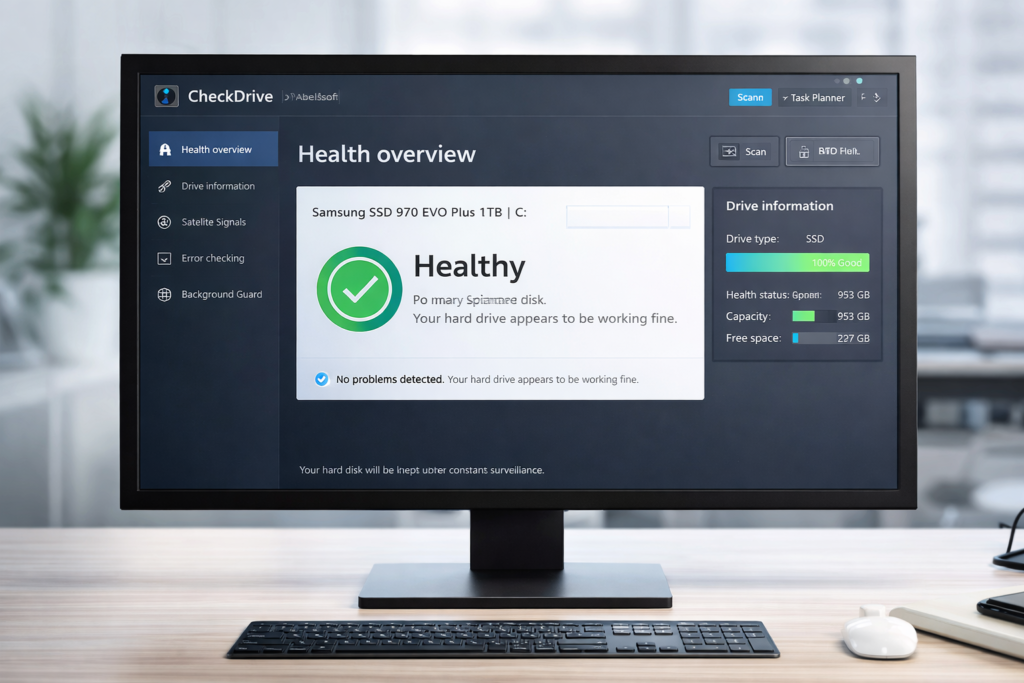
CheckDrive Review: What It Does and Who It Is For
This CheckDrive review is designed for people who want a clear answer before downloading or buying the software. CheckDrive is a Windows hard drive health tool that focuses on prevention, monitoring, and simpler maintenance. Instead of waiting until your PC starts acting strange or your files become inaccessible, the software is designed to help you check drive health earlier, spot warning signs, and run checks more regularly.
That makes it especially appealing for home users, freelancers, students, remote workers, and anyone who keeps important files on a Windows computer but does not want to rely only on manual system tools. It is less about deep enterprise storage management and more about giving ordinary users a practical way to watch over their storage before a bad situation turns into a disaster.
| Question | Short Answer |
|---|---|
| What is CheckDrive? | A Windows drive health and file system monitoring tool from Abelssoft. |
| Who is it best for? | Everyday Windows users who want easier drive monitoring and earlier warnings. |
| What does it check? | Drive health, S.M.A.R.T. information, file system errors, and ongoing monitoring tasks. |
| Is it a backup tool? | No. You should still keep separate backups. |
| Is it ideal for RAID? | No. RAID setups are not the right fit. |
| Best reason to use it? | It makes drive monitoring easier and more proactive than waiting for obvious problems. |
Why Hard Drive Monitoring Still Matters
Many people do not think about drive health until something goes wrong. That is exactly why products like CheckDrive exist. A drive can start developing problems long before the average user notices anything. You might see occasional slowdowns, random file access issues, startup delays, or unusual behavior that feels minor at first. The problem is that by the time those issues become obvious, you may already be at higher risk of data loss, corrupted files, or a much more stressful recovery process.
For normal users, the goal is not to become a storage expert. The goal is to get enough visibility to make better decisions earlier. That could mean replacing a risky drive sooner, running checks before a small issue turns into a larger one, or simply feeling more confident that your family photos, work documents, projects, and personal files are not sitting on a drive you have never checked.
That is where CheckDrive’s appeal becomes clear. It is trying to make health monitoring easier to understand, easier to repeat, and easier to remember.
Main Features in This CheckDrive Review
1. Hard Drive Health Checks
The core purpose of CheckDrive is to help you see the condition of your drives more clearly. Instead of leaving users to guess whether a drive is healthy, the software is designed to show a readable overview and point out when something may need attention. For many users, this alone is valuable because the biggest problem with drive maintenance is not always the lack of tools. It is the lack of visibility and routine.
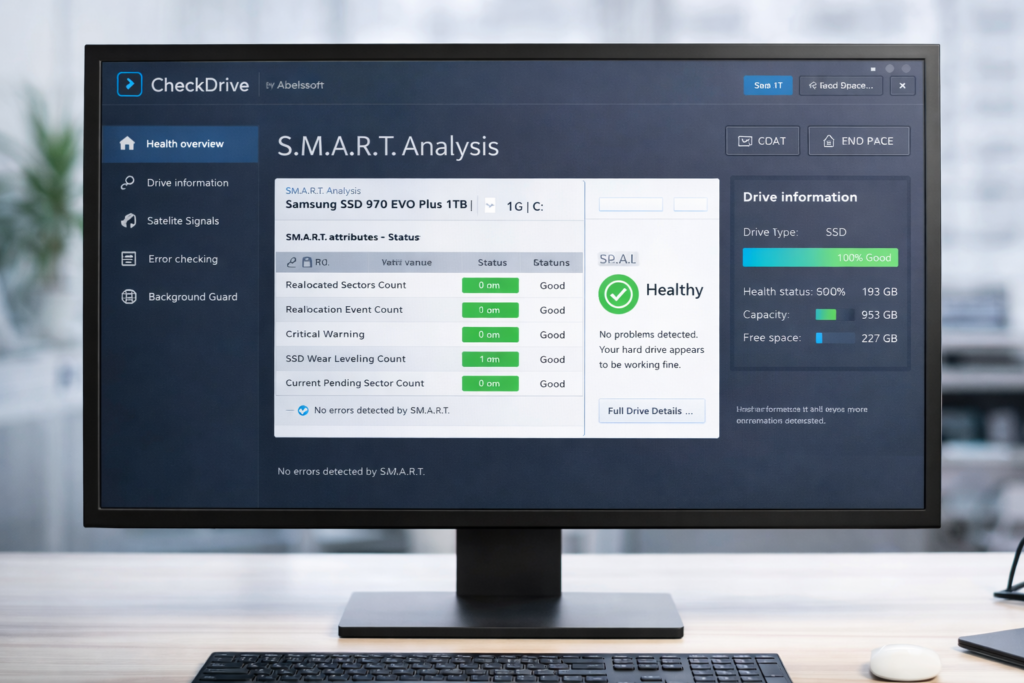
2. S.M.A.R.T. Analysis
One of the strongest parts of CheckDrive is that it uses S.M.A.R.T. data to assess drive health. For non-technical users, raw S.M.A.R.T. values can be difficult to interpret. A product like CheckDrive adds value by turning low-level drive information into something easier to understand. That does not mean it can guarantee the future, but it can give users a more practical sense of whether a drive looks healthy or whether warning signs are starting to appear.
3. File System Error Checking and Repair
CheckDrive is not only about passive monitoring. It also checks for file system errors and can correct smaller issues. That makes it more useful than a tool that only reports health without helping users do anything about basic problems. For the average Windows user, this combination is a big plus because it joins monitoring and maintenance in one place.
4. Background Monitoring
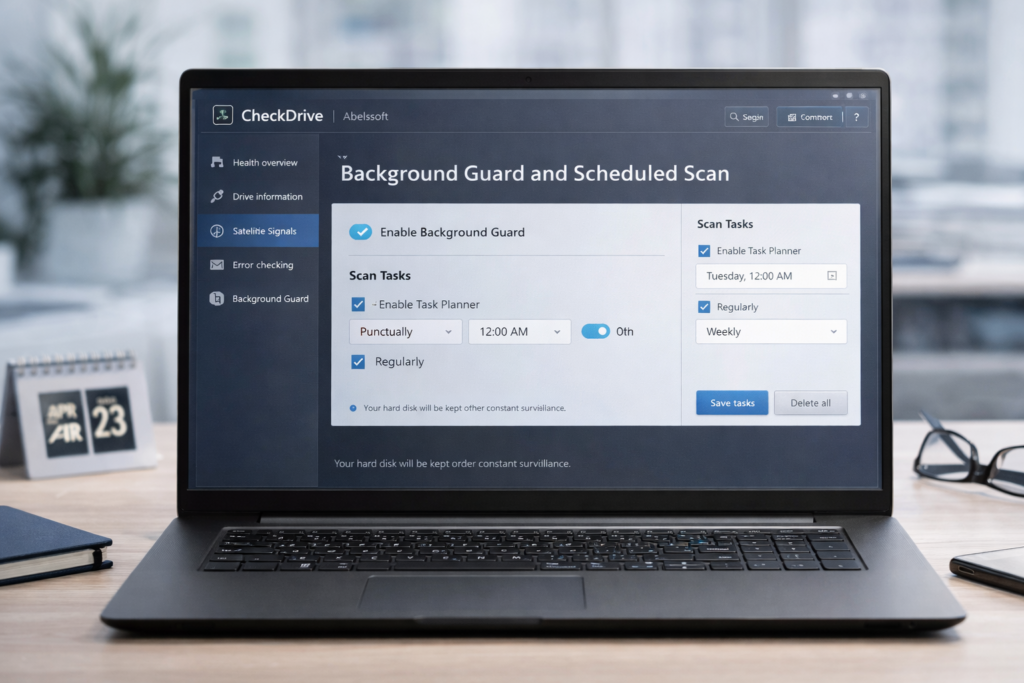
One of the most attractive premium reasons to consider CheckDrive is background monitoring. This matters because most users are not going to remember to open a disk health tool regularly. A background guard is more practical because it keeps watch in the background and can warn you in time instead of relying on memory and discipline.
5. Scheduled Scans
Scheduled scans make the software more useful as a routine maintenance tool. Rather than treating drive checks as a panic move after symptoms appear, you can make drive health checks part of normal maintenance. This is a strong selling point for users who want a low-effort system that works quietly in the background.
6. Support for HDDs, SSDs, and Many External Drives
Many users today are not dealing with just one internal drive. They may also use SSDs, external USB drives, portable backups, or older archive drives. A product that can help monitor multiple common drive types is easier to recommend because it matches how people actually use storage now.
CheckDrive Pros and Cons
| Pros | Why It Matters |
|---|---|
| Easy for non-technical users | Good fit for people who do not want to depend on command-line tools. |
| Combines monitoring and maintenance | You get health checks plus file system error checking in one tool. |
| Background monitoring is useful | Much better for prevention than relying on occasional manual checks. |
| Scheduled scans improve consistency | Helps turn drive monitoring into a habit instead of an afterthought. |
| Works well for mainstream Windows use cases | Strong fit for laptops, desktops, home offices, and personal storage. |
| Cons | Why It Matters |
|---|---|
| Not a backup solution | You still need separate backups for real protection. |
| Not ideal for RAID systems | Users with more advanced storage setups should look elsewhere. |
| Power users may prefer fully free specialist tools | Some users want more raw technical detail and less convenience-focused design. |
| Free version is limited | The strongest convenience features are part of the paid experience. |
CheckDrive Free vs Paid: Is the Upgrade Worth It?
This is one of the most important questions in any CheckDrive review. The free version can still be useful, especially if you simply want to see whether the software fits your workflow. But the paid version is where the product becomes more persuasive, mainly because it shifts from occasional checking to more proactive monitoring.
| Version | Best For | Main Trade-Off |
|---|---|---|
| Free Version | Users who want to test the software first | More limited experience and fewer proactive features |
| Paid Version | Users who want background monitoring and a more complete maintenance workflow | Requires a purchase, so value depends on how much convenience matters to you |
If you are the type of user who only wants to check a drive once in a while, the free version may be enough to evaluate the product. But if your goal is earlier warnings, less manual work, and a more preventive approach, the paid version is where CheckDrive becomes more compelling.
Pricing and Licensing Explained
One of the things buyers often overlook is that software value is not only about features. It is also about licensing. A tool may look affordable at first, but the real question is whether the license structure matches how you plan to use it. If you only want a simple utility for one PC and occasional checks, one version may be enough. If you want longer-term updates or a more permanent setup, another option may make more sense.
That is why it is smart to check the current offer carefully before buying. Instead of focusing only on the headline price, look at what type of access you are getting, whether updates are included, and whether the offer fits your actual usage habits.
| License Type | Best For | Main Advantage | What to Watch |
|---|---|---|---|
| Free Version | Users who want to test the software first | Low-risk way to explore the interface and core idea | Limited convenience compared with paid options |
| Standard Paid Access | Users who want a fuller maintenance workflow | Better fit for regular monitoring and long-term use | Buyers should confirm what is included before purchase |
| Longer-Term or Lifetime-Style Option | Users who prefer less friction over time | Can offer better long-term value for repeat use | Upfront cost may be higher |
For most buyers, the best choice comes down to one thing: do you want a one-time utility you open occasionally, or do you want a more ongoing monitoring setup? If you value convenience and consistency, the more complete paid path will usually make more sense.
CheckDrive vs CHKDSK vs CrystalDiskInfo
Most buyers do not compare CheckDrive against nothing. They compare it against built-in Windows tools or well-known free alternatives. That is why this section matters for both SEO and conversions.
| Tool | Best For | Strengths | Weaknesses |
|---|---|---|---|
| CheckDrive | Everyday Windows users who want easier monitoring | Simple interface, health checks, file system scanning, background monitoring, scheduled scans | Some of the best convenience features are not part of the free experience |
| CHKDSK | Users comfortable with built-in Windows maintenance | No extra install, familiar to advanced users, useful for repair tasks | Less beginner-friendly, more manual, less focused on polished ongoing monitoring |
| CrystalDiskInfo | Users who want a free, more technical drive health utility | Popular, free, good S.M.A.R.T. visibility | Can feel more technical and less mainstream-user friendly |
If you prefer a more polished and consumer-friendly experience, CheckDrive has a strong argument. If you are highly technical and want a free tool with a more raw data feel, CrystalDiskInfo may still be more attractive. If you only want an occasional built-in repair check and do not mind command-based workflows, CHKDSK may be enough.
Who Should Use CheckDrive?
| Good Fit For | Probably Not Ideal For |
|---|---|
| Home users with important personal files | RAID users |
| Freelancers and remote workers using Windows laptops or desktops | Enterprise storage administrators |
| People who want a more visual way to monitor drive health | Users who only want completely free software |
| Users who forget to run maintenance checks manually | People expecting backup, recovery, and advanced storage management in one package |
| Anyone who wants earlier warning signs before a drive gets worse | Highly technical users who prefer raw diagnostics over ease of use |
How to Use CheckDrive Effectively
Buying disk health software is only useful if you actually build a simple habit around it. The good news is that you do not need a complicated system. A practical setup is enough.
| Step | What to Do | Why It Helps |
|---|---|---|
| 1 | Run an initial scan on all relevant drives | Gives you a baseline view of your storage health |
| 2 | Pay attention to any warning signs or health changes | Helps you react earlier instead of waiting for obvious problems |
| 3 | Use scheduled checks if available | Makes monitoring more consistent and less dependent on memory |
| 4 | Keep backups separate from monitoring | Monitoring reduces risk, but backups protect your actual data |
| 5 | Recheck older or external drives regularly | These drives are often used less often and monitored less carefully |
The best way to think about CheckDrive is not as a magic shield, but as an early-warning and maintenance habit tool. Used that way, it becomes much more valuable than a utility you install once and forget.
What I Like Most About CheckDrive
The biggest strength of CheckDrive is not that it tries to be everything. Its biggest strength is that it turns an important but ignored task into something more manageable. Most users do not need an overwhelming amount of drive data. They need a simple way to understand whether their drive looks healthy, whether they should pay attention, and whether the software can help them stay ahead of a problem.
That is why CheckDrive can make sense as a real-world recommendation. It sits in a useful middle ground between raw manual tools and completely ignoring storage health until a failure becomes obvious. For a lot of users, that middle ground is exactly where the best buying decisions happen.
Where CheckDrive Falls Short
No honest CheckDrive review should pretend the software is perfect. It does not replace backups. It does not turn drive health predictions into certainty. It is not designed for RAID-heavy or more specialized storage environments. And it will not appeal equally to every type of user.
That said, those limitations do not automatically make it a weak product. They simply define its best audience more clearly. CheckDrive is strongest when it is recommended to everyday Windows users who value simplicity, convenience, and prevention more than deep technical customization.
My Final Rating for CheckDrive
To make this review easier to scan, here is a simple rating summary based on mainstream Windows users rather than highly technical storage specialists.
| Category | Rating | Why |
|---|---|---|
| Ease of Use | 9/10 | One of its strongest points for ordinary Windows users |
| Feature Practicality | 8.5/10 | Combines health checks, maintenance value, and better monitoring habits |
| Value for Mainstream Users | 8/10 | Worth it if you want convenience more than raw technical depth |
| Best for Beginners | 9/10 | Easy to recommend to users who dislike command-line tools |
| Best for Power Users | 6.5/10 | Some advanced users may still prefer more technical free alternatives |
Is CheckDrive Worth It?
For the right user, yes. If you want a more user-friendly way to monitor drive health on Windows, CheckDrive is worth a serious look. It gives you a simpler path to routine health checks, clearer visibility into storage condition, and a more preventive maintenance workflow than many people ever get from built-in tools alone.
It becomes even more worthwhile if you are the kind of person who stores valuable work files, family photos, school projects, or business documents locally and would rather catch warning signs earlier than deal with a stressful failure later.
If you are an advanced user who prefers fully free tools and does not mind interpreting more technical data, you may decide that another solution fits better. But for mainstream Windows users, CheckDrive has a clear and practical value proposition.
Final Verdict
CheckDrive is a solid option for Windows users who want easier hard drive health monitoring without relying only on manual tools or waiting for obvious warning signs. Its best selling point is convenience: it helps turn drive health checks into something understandable and repeatable.
It will not replace backups, and it is not the right choice for every advanced storage setup. But if your goal is to reduce risk, stay more aware of your drive’s condition, and use a tool that feels approachable instead of intimidating, CheckDrive is easy to justify as a practical utility.
Frequently Asked Questions
Is CheckDrive free?
CheckDrive offers a free version, but the paid version is the one that makes the product more useful for ongoing prevention and convenience.
Can CheckDrive predict hard drive failure?
It can help identify warning signs and health issues, but no software can guarantee exactly when a drive will fail. That is why backups still matter.
Does CheckDrive replace backups?
No. Monitoring and backups solve different problems. Monitoring can warn you earlier, while backups protect your data if something still goes wrong.
Is CheckDrive good for SSDs?
Yes, it is positioned as a drive health tool for common HDD and SSD use cases, which is one reason it fits modern Windows setups well.
Who should skip CheckDrive?
Users with RAID-focused storage setups, advanced enterprise needs, or a strong preference for fully free and more technical utilities may want a different tool.
About the Author
Xu Xun
Contact: xuxun1208@gmail.com
Last Updated: June 2026