
If you are looking for a Windows screen recorder that is easy to use but still polished enough for tutorials, presentations, demos, and documentation, ScreenVideo is one of the options worth considering. Instead of trying to overwhelm users with an overly complex workflow, this software focuses on making screen recording approachable, practical, and visually clean for real everyday use.
For many users, that matters more than having the most advanced feature list on the market. A screen recorder does not need to be complicated to be useful. It needs to help you capture your screen clearly, add audio without friction, export in the format you need, and ideally let you include yourself on camera when you want your video to feel more personal. That is exactly the kind of user ScreenVideo appears to target.
Whether you create YouTube tutorials, internal training videos, educational lessons, software walkthroughs, onboarding material, or client demos, a tool like this can save time and reduce technical stress. In this ScreenVideo review, we will look at what the software does well, where it fits best, where it falls short, and whether it is worth buying for your workflow.
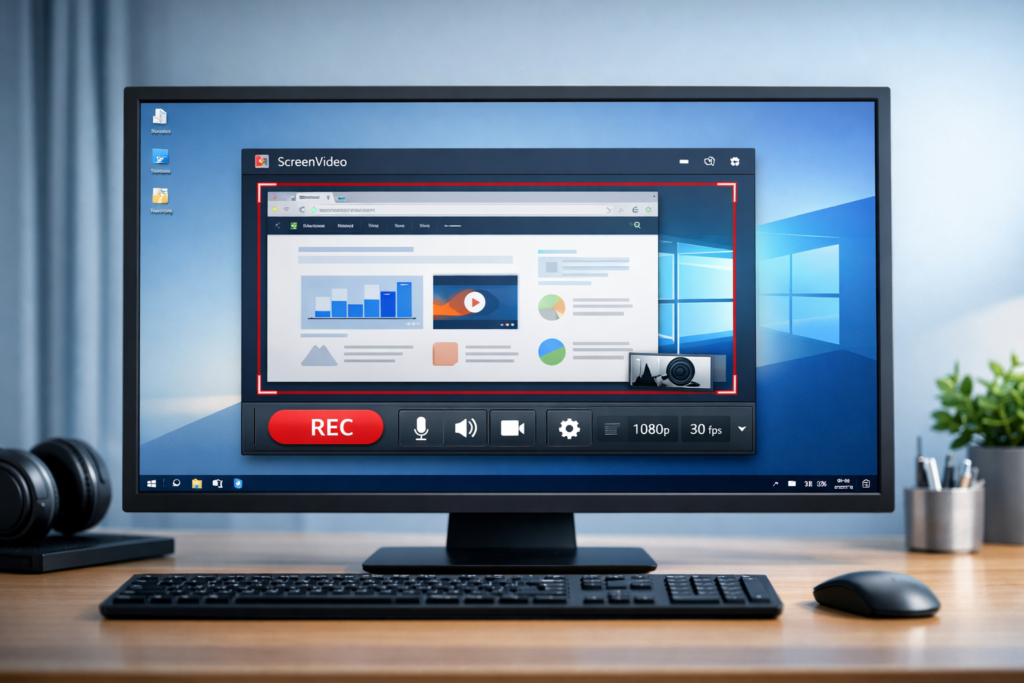
What Is ScreenVideo?
ScreenVideo is a Windows screen recording tool from Abelssoft designed for users who want a simple way to capture either the full screen or a selected area of the screen. It is positioned as a solution for both beginners and more experienced users, which makes sense for a product in this category. Many people do not want an advanced production suite for everyday recording. They want a recorder that launches quickly, is easy to understand, and produces videos that look good enough to publish or share immediately.
The software is especially relevant for users who regularly explain things visually. That includes teachers, course creators, freelancers, support teams, small business owners, consultants, and content creators. If your work involves showing someone how to do something on screen, a lightweight recording workflow can often be more valuable than a heavyweight editing environment.
ScreenVideo also includes a picture-in-picture moderator feature, which lets you place your webcam feed inside the recording. This is useful when you want your videos to feel more human, trustworthy, and engaging. It can make tutorials and presentations look more professional without turning the whole process into a complicated production task.
ScreenVideo at a Glance
| Category | Details |
| Product Name | ScreenVideo |
| Developer | Abelssoft |
| Main Purpose | Screen recording on Windows |
| Best For | Tutorials, presentations, demos, lessons, documentation |
| Recording Area | Full screen or selected area |
| Webcam Overlay | Yes, picture-in-picture moderator mode |
| Audio Sources | Microphone, webcam, or system audio |
| Output Quality | From SD up to 4K |
| Export Formats | MP4, WMV, and other formats |
| Platform | Windows |
This is the kind of feature set that appeals to buyers who want a focused screen recorder rather than an overloaded all-in-one creative suite. That distinction matters because many people searching for a screen recorder do not actually need cinematic editing tools. They need something reliable, clear, and easy to operate.
Key Features That Make ScreenVideo Stand Out
The first major strength is usability. Screen recording software often becomes intimidating when the interface is built more for technical enthusiasts than normal users. ScreenVideo appears to go in the opposite direction. It is meant to help users start quickly, choose what to record, capture the necessary audio, and export without getting trapped in a needlessly complex setup process.
The second strength is the webcam-based moderator feature. This is more important than it may sound at first. A lot of tutorials feel flat when viewers only see a screen and hear a voice. Adding a webcam overlay makes the content feel more personal and more credible. For YouTube tutorials, online classes, product demos, onboarding material, and client-facing walkthroughs, this can noticeably improve engagement.
The third strength is output flexibility. Different use cases require different output decisions. A quick internal training video may not need ultra-high quality, but a public tutorial or branded presentation may benefit from higher resolution. A recorder that supports multiple quality levels, multiple formats, and practical settings like frame rate and bit rate is more useful in the real world because it adapts to different publishing needs.
| Feature | Why It Matters |
| Full-screen recording | Useful for complete walkthroughs and live demonstrations |
| Partial-screen recording | Helps focus attention on a specific tool, app, or workflow |
| Webcam picture-in-picture | Makes tutorials and presentations feel more personal |
| Multiple audio inputs | Supports narration, system sound, or webcam sound |
| Up to 4K output | Better visual quality for large screens and modern displays |
| MP4 and WMV export | Makes sharing and publishing more convenient |
| Adjustable recording settings | Gives users more control over quality and file size |
Who Should Use ScreenVideo?
ScreenVideo makes the most sense for users who want to create useful, polished screen recordings without spending too much time learning a complicated interface. It is not just for content creators. In fact, many of the strongest use cases are professional and educational rather than purely public-facing.
| User Type | Why ScreenVideo Fits |
| Beginners | Simple workflow and easier learning curve |
| Teachers and trainers | Useful for lesson recording and guided explanations |
| YouTubers | Webcam overlay helps create more engaging tutorial videos |
| Freelancers | Great for client walkthroughs and process explanations |
| Support teams | Helpful for bug demonstrations and visual support replies |
| Small businesses | Useful for onboarding, internal processes, and staff training |
| Consultants and agencies | Useful for audits, reports, and explaining recommendations visually |
One of the reasons this matters for buying intent is that the best software is not always the one with the most features. It is the one that matches how you actually work. If you record screen-based content frequently and want the process to stay fast, consistent, and professional enough for clients, customers, students, or viewers, ScreenVideo looks like a practical match.
ScreenVideo Pros and Cons
| Pros | Cons |
| Easy for beginners to understand | Trial version includes watermarks and advertising |
| Supports full-screen and area recording | Not the best fit for users who want deep editing features |
| Webcam overlay adds presentation value | Windows-focused, so not ideal for Mac-first users |
| Supports several audio sources | More focused on recording than on full production workflow |
| Can export up to 4K | Advanced creators may still want separate editing software |
| Multiple export formats improve flexibility | Not positioned as a collaborative or team-centered platform |
This balance is important for SEO and conversion because it makes the article more credible. Buyers do not want to read a page that blindly praises every feature. They want to know what the product is good at and what kind of user may outgrow it. ScreenVideo seems strongest when used as a focused recording tool, especially for users who value speed, ease, and clear output over advanced post-production complexity.
Recording Quality, Audio, and Export Options
Recording quality is one of the most important parts of any screen recorder review because it affects not only how good the finished video looks, but also how usable it is on different platforms. ScreenVideo supports output up to 4K, which gives users room to create sharper recordings for larger monitors, modern displays, and more professional-looking public content.
At the same time, not every video needs to be exported at maximum quality. Smaller videos can be easier to upload, easier to store, and faster to share internally. That is why having different quality levels matters. It allows the software to fit both everyday business use and more polished external publishing.
Audio flexibility also deserves attention. Many weak screen recorders create unnecessary friction when handling narration, system sound, or mixed audio sources. A useful recorder should let you capture what viewers actually need to hear. That could mean your microphone for instruction, the system audio for a software demonstration, or webcam sound depending on how you present.
| Area | What Matters for Buyers | Why It Helps |
| Resolution options | Low to high output quality | Lets users balance quality and file size |
| Audio input flexibility | Microphone, webcam, system audio | Supports tutorials, demos, and presentations |
| Export formats | MP4, WMV, and others | Improves compatibility with different devices and platforms |
| Recording controls | Frame rate, bit rate, cursor size, and more | Gives more control over the final result |
Ease of Use and Setup Experience
Ease of use is often the real deciding factor when people compare screen recording software. Many users do not create screen videos full-time. They simply need to explain something clearly and do not want to waste time learning a complicated system. That is where ScreenVideo has a strong practical angle.
A simpler workflow can be a major productivity advantage. If you can open the software, choose the recording area, confirm your audio source, start recording, and export in a format that works, you have already solved the core problem for a large number of real-world scenarios. That is why beginner-friendly software often converts well: it is not necessarily less capable, just more aligned with what most users actually need.
For users creating recurring content, simplicity also supports consistency. A tool that feels easy to repeat week after week is often more valuable than one with dozens of extra controls you never touch. If your goal is dependable tutorial creation, repeatable presentation capture, or straightforward screen-based content production, usability is not a small detail. It is one of the main reasons to buy.
ScreenVideo Trial vs Full Version
One of the key buying questions is whether the trial version is enough or whether the full version is the better long-term choice. Trial versions are useful because they lower the barrier to entry, but they also often include restrictions that make paid access more attractive once the user sees the software fits their workflow.
| Version | What You Get | What It Means in Practice |
| Trial Version | Advertising and watermarks in screen videos | Good for testing, but not ideal for polished public or client-facing content |
| Full Version | Unlimited use, email support, updates | Better for ongoing work, clean exports, and serious use |
For some users, the trial may be enough to confirm whether the software feels intuitive and whether the recording quality meets expectations. But once you begin using screen recordings for customers, students, clients, colleagues, or public content, watermarks and other trial limitations can quickly become a reason to upgrade.
ScreenVideo Pricing and Value
Pricing matters because screen recording tools range from free but limited utilities to more advanced creator tools with much higher costs. ScreenVideo sits in a more accessible price range, which makes it appealing to solo users, freelancers, educators, small teams, and content creators who want useful functionality without overspending on features they may never use.
When evaluating value, it helps to ask what kind of problem the software solves for you. If you only need to record your screen once a year, almost any tool might do. But if you regularly create tutorials, send explanatory videos, publish lessons, show workflows to clients, or build documentation, then speed and repeatability become part of the product’s value. A focused recorder that makes all of that easier can be well worth paying for.
Another factor in value is confidence. Buyers often prefer a product that feels straightforward, supported, and practical over something that promises endless complexity. For the right audience, ScreenVideo’s value comes from reducing friction while still offering enough quality and flexibility to produce polished results.
Best Use Cases for ScreenVideo
| Use Case | Why ScreenVideo Works Well |
| Software tutorials | Clear screen capture plus optional presenter overlay |
| Online classes | Good for explaining lessons step by step |
| Client walkthroughs | Helps explain processes visually and efficiently |
| Internal training | Useful for repeatable onboarding and SOP videos |
| YouTube how-to videos | Supports more engaging presentation with webcam overlay |
| Bug reporting and tech support | Lets users show exactly what is happening on screen |
| Product demos | Works well for showcasing features or workflows clearly |
These use cases are important because they help readers decide whether the product matches their own workflow. A good review should not just say a product is useful. It should show where that usefulness appears in practice. ScreenVideo seems most attractive when the goal is to create understandable, polished recordings quickly and consistently.
Where ScreenVideo Falls Short
No software is perfect for every buyer, and ScreenVideo is no exception. Its biggest strength is focus, but that can also be a limitation depending on what you need. Users looking for deep timeline editing, advanced visual production controls, team collaboration tools, or a full creator suite may find that ScreenVideo is better as a recording-first tool than as an all-in-one production platform.
That does not make it a weak option. It simply means it is better to judge it by the job it is built to do. If your priority is efficient Windows screen recording with practical export flexibility and a presenter-friendly webcam mode, it looks like a good fit. If your priority is replacing a full video production environment, you may eventually need additional software around it.
Why ScreenVideo Can Be a Good Fit for SEO, Course, and Business Content Creators
One angle many reviews miss is the role screen recording software plays in content marketing and business communication. If you publish tutorials on YouTube, create educational modules, answer customer questions visually, or produce onboarding material, your recording tool affects both quality and speed. A workflow that feels simple enough to repeat consistently can indirectly support your broader content strategy.
For example, affiliate marketers and digital publishers often create walkthroughs to accompany blog posts. Educators create screen lessons to support written material. SaaS-focused bloggers and consultants use screen recordings to explain dashboards, settings, or product steps. In all of these scenarios, the value is not only in making one video. It is in making repeated video creation easier over time.
That is why software like ScreenVideo can be worth considering even for users who are not traditional video creators. If screen-based explanation is part of your work, content strategy, support workflow, or customer education process, a simple recorder can become an important operational tool.
Final Verdict: Is ScreenVideo Worth It?
ScreenVideo stands out as a practical Windows screen recorder for users who want a balance of simplicity, quality, and useful presentation features. Its strongest appeal is not that it tries to do everything. It is that it focuses on what many buyers actually need: easy screen capture, flexible output quality, support for multiple audio sources, useful export options, and a webcam overlay that makes tutorials and presentations feel more engaging.
If you are a beginner, educator, freelancer, consultant, support professional, or content creator who wants to produce clear screen recordings without a steep learning curve, ScreenVideo is easy to shortlist. It seems especially well suited for tutorials, demos, lessons, walkthroughs, onboarding content, and documentation. Users who need a recording-first tool with a more approachable workflow may find it a better fit than more bloated alternatives.
On the other hand, if you need highly advanced editing or a complete production ecosystem, you may eventually want additional tools beyond a recorder like this. But for many buyers, that is not a reason to dismiss it. It is a reason to recognize that ScreenVideo is built for focused, practical screen recording rather than overcomplicated production.
FAQ
Is ScreenVideo good for beginners?
Yes, ScreenVideo appears to be a strong option for beginners who want to start recording their screen without learning a complicated workflow. Its main appeal is that it keeps the process approachable while still offering useful output and recording controls.
Can ScreenVideo record webcam and screen at the same time?
Yes. One of its more useful features is the moderator-style picture-in-picture mode, which lets you display your webcam feed inside the screen recording. This is especially useful for tutorials, presentations, lessons, and YouTube-style content.
Is ScreenVideo a good choice for tutorials and online teaching?
It looks like a strong fit for that purpose. The combination of screen capture, audio input flexibility, webcam overlay, and practical export options makes it suitable for explaining on-screen steps clearly to students, customers, or viewers.
Does ScreenVideo support high-quality export?
Yes. It supports output up to 4K, which makes it more flexible for users who want sharper recordings for larger monitors, YouTube uploads, or more polished professional use.
Who should probably skip ScreenVideo?
Users who need a deep editing suite, complex production controls, or a broader team collaboration environment may want to pair it with other software or consider tools built more heavily around post-production. ScreenVideo seems best as a focused screen recording solution.
Is ScreenVideo worth buying?
For users who frequently make tutorials, presentations, demos, and walkthrough videos on Windows, it looks like a worthwhile option because it prioritizes simplicity and practical recording features rather than unnecessary complexity.
About the Author
Xu Xun
Contact: xuxun1208@gmail.com
Last Updated: June 2026